Why extract colors from images
You see a photo with a perfect brand red. Or a screenshot of a competitor's UI with a button color you want to match. Or a product photo and you need the exact hex for your stylesheet.
Guessing doesn't work. The human eye is terrible at matching colors from memory — what looks like "#3B82B6" in your head is often off by 20-30 degrees of hue. You need the actual pixel value.
That's what a color picker does: read the exact red, green, and blue values at any pixel in an image, and convert them to whatever notation you need — hex, RGB, HSL.
How browser color pickers work
Every browser-based color picker uses the same mechanism: the Canvas API.
- The image is loaded into an in-memory
<canvas>element. - The
getImageData()method reads the raw pixel buffer. - Each pixel is a 4-tuple:
[red, green, blue, alpha], each 0-255. - The picker converts these to hex (
#RRGGBB), RGB (rgb(r, g, b)), or HSL on demand.
Because this happens entirely in the browser, the image never leaves your device. This is the same privacy model SynoxTools uses for all its tools — your photos stay yours.
Hex vs RGB vs HSL: which to use
These three notations describe the same color differently. Each is useful in different contexts.
Hex (#3B82B6) — the most compact form, used everywhere in HTML and CSS. Each pair of characters is one channel: 3B is red (59 in decimal), 82 is green (130), B6 is blue (182). Hex is what you'll paste into a color: property or a Figma fill.
RGB (rgb(59, 130, 182)) — the same values in decimal. Easier to read in code, supports an alpha channel as rgba(59, 130, 182, 0.5). Most design tools show RGB alongside hex.
HSL (hsl(207, 51%, 47%)) — hue, saturation, lightness. This is the format humans reason in. Want a darker version of the same color? Drop the L from 47% to 30%. Want it more saturated? Push S from 51% to 80%. Hex and RGB make these tweaks opaque; HSL makes them intuitive.
The practical rule: use hex when pasting into a stylesheet, RGB when writing JavaScript that manipulates colors, HSL when iterating on a palette.
Building a palette from a photo
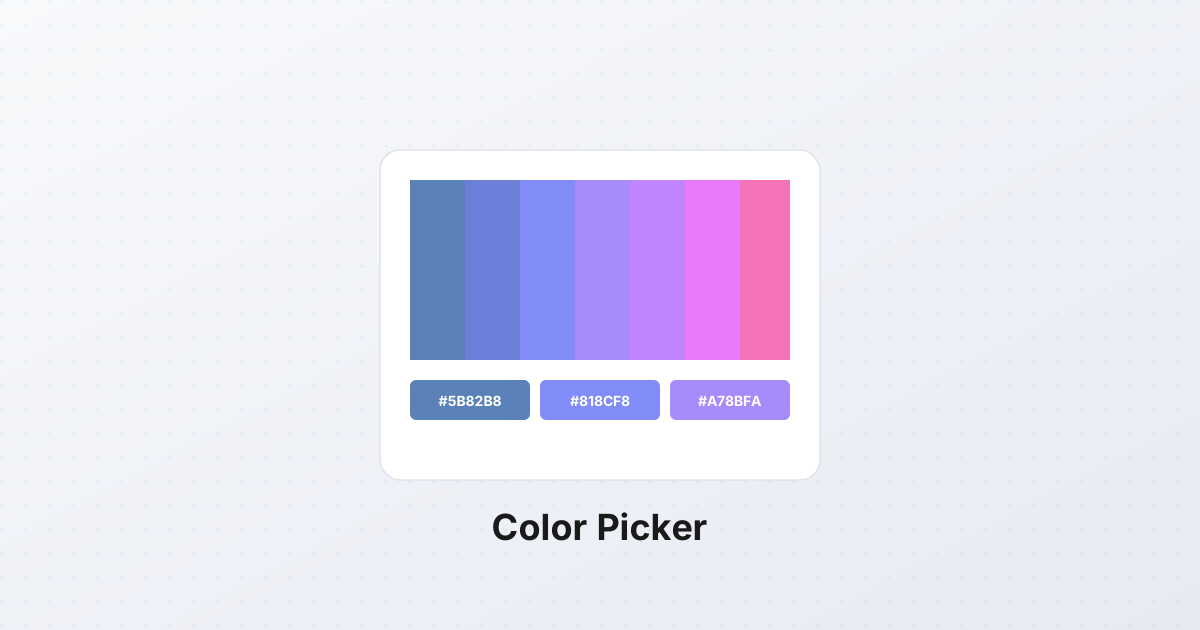
A single color is rarely what you need. Usually you want a palette — 3 to 5 colors that work together. Here's a workflow:
- Pick the dominant color — the one that covers the most area. For a landscape photo, this is usually the sky or the foreground. Click the largest region.
- Pick an accent color — a contrasting color, often a small bright area (a flower, a sign, a piece of clothing). This will be your call-to-action color.
- Pick a neutral — a gray, brown, or muted tone from a shadow or midtone region. This will be your text or background color.
- Pick a dark variant — click a shadow region. This will be your text-on-light-background color.
- Pick a light variant — click a highlight region. This will be your background color.
Five colors, one palette, harmonious because they came from the same source.
Accessibility: contrast matters
A palette that looks good isn't necessarily accessible. The WCAG AA standard requires a contrast ratio of at least 4.5:1 between text and background for normal-sized text.
The math: take your text hex and your background hex. Compute the relative luminance of each. Divide the larger by the smaller. If the result is below 4.5, your text will be hard to read for users with visual impairments.
Most color picker tools compute this automatically — they'll show a green checkmark or a red X next to your color pair. Trust the number, not your eyes. What looks readable to you on a calibrated monitor may fail for a user with low vision on a cheap laptop screen.
The privacy angle
Most "online color picker" tools upload your image to a server. The server picks the color and sends back the hex. This works, but it means your photo — which might be a screenshot of a competitor's product, a client's unreleased design, or a private family photo — is now on someone else's hard drive.
Browser-based pickers don't do this. The Canvas API reads pixels locally. Your image is processed in your browser and never transmitted. For sensitive images — client work, unreleased products, anything with personal information — this is the only acceptable model.
You can verify this yourself. Open your browser's DevTools (F12), go to the Network tab, pick a color from an image in a browser-based tool. Watch the network requests. You'll see zero uploads. The only request is the initial page load.
The takeaway
Color picking is a small task that comes up constantly in design and development work. A browser-based picker that reads pixels locally — without uploading your image — is fast, private, and gives you the exact values you need in hex, RGB, or HSL. The next time you see a color you want to match, don't guess. Pick it.