The hidden cost of "free" online tools
Most "free online image compressor" tools work the same way: you upload a photo, the server compresses it, you download the result. The tool is free, but the cost is your image leaving your device.
That cost is not theoretical. Here's what actually happens when you upload a photo to a typical online compressor:
- The photo is transmitted to a server you don't control. It's stored in a queue, often in a public cloud bucket.
- The server processes it using ImageMagick, sharp, or a custom pipeline. This may take a second or may take minutes.
- The processed image is stored on the server, often with a unique URL that's guessable.
- You download the result. The server may keep the original, the result, or both — for hours, days, or indefinitely.
- The original is sometimes analyzed — for content moderation, for training data, for advertising signals.
This is not paranoia. In 2019, the popular photo tool Prisma was found storing user photos on AWS S3 buckets with guessable URLs. In 2021, a compression service called Compressor.io leaked user images through predictable CDN URLs. In 2023, an AI image generator's logs exposed prompts and source images of users who had no idea their uploads were logged.
The pattern is consistent: when you upload, you lose control. Browser-based tools don't have this problem.
How browser-based tools actually work
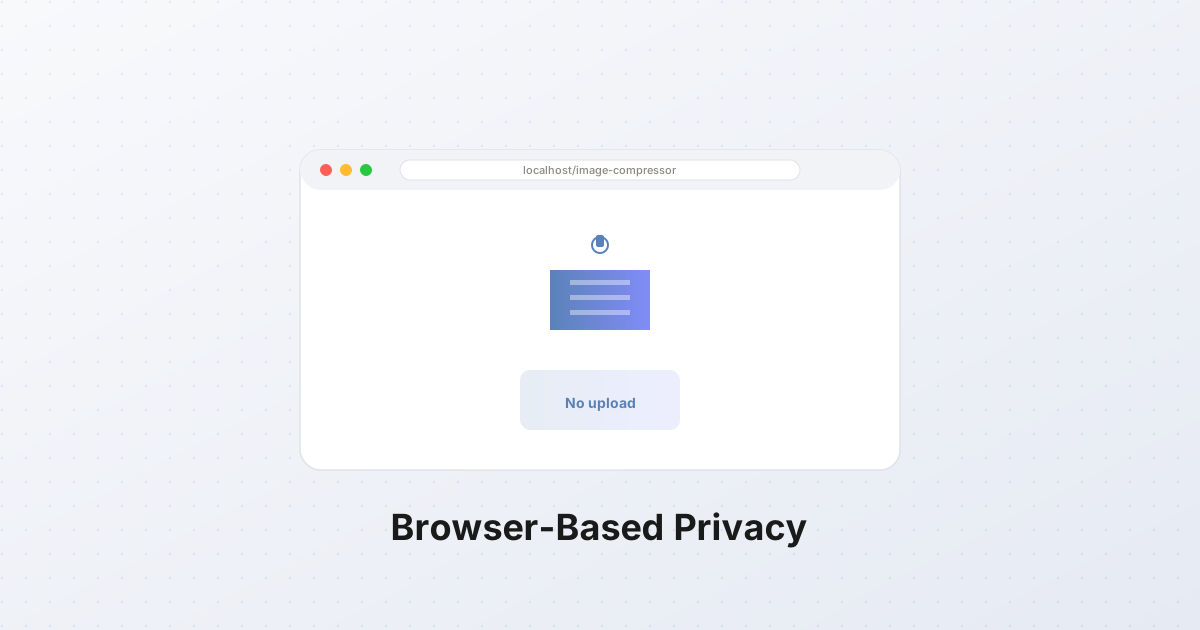
A browser-based image tool runs entirely on your device. The image never leaves your browser. Here's the mechanism:
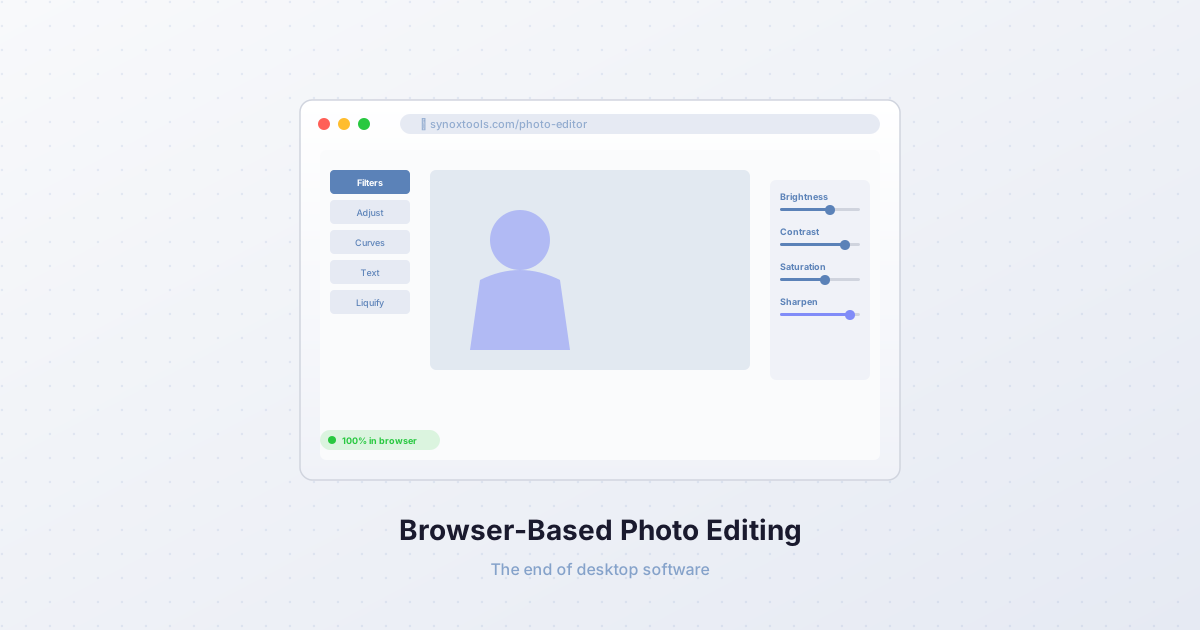
The Canvas API — every browser can decode an image into raw pixels, draw them onto a <canvas> element, and re-encode the canvas as a different format or quality. This is how browser-based compressors, converters, and croppers work. The pixels stay in your device's memory.
Web Workers — image processing can be moved off the main thread so the UI stays responsive. The worker receives the image data, processes it, and returns the result. Still local, still no upload.
WASM (WebAssembly) — for heavy operations like AVIF encoding, OCR, or neural upscaling, the browser can run compiled C++/Rust code in WASM. This is how Squoosh runs AV1 encoders in the browser, how Tesseract.js runs OCR locally, and how SynoxTools runs image upscaling without uploading.
The key insight: all the heavy lifting that used to require a server can now happen in the browser. WASM gives near-native performance. Web Workers keep the UI smooth. The Canvas API handles format conversion. There is no technical reason to upload an image to a server just to compress it.
The proof: open DevTools and watch
You don't have to take this on faith. You can verify that a browser-based tool never uploads your image in about 30 seconds.
- Open your browser's DevTools (F12 in Chrome/Firefox, Cmd+Option+I on Mac).
- Go to the Network tab.
- Check the "All" filter so you see every request.
- Load your image into the tool.
- Watch the network requests.
For a browser-based tool, you'll see the initial page load and then — nothing. No upload request. No data leaving your device. The image is processed locally; the result is generated locally; the download is a local file.
For a server-based tool, you'll see a POST request with the image data going to their server, then a GET request for the result. The image is on their server now.
This is the definitive test. If you see an upload request, the tool is server-based. If you don't, it's browser-based. The SynoxTools tools are all browser-based — verify it yourself.
Performance: the browser is often faster
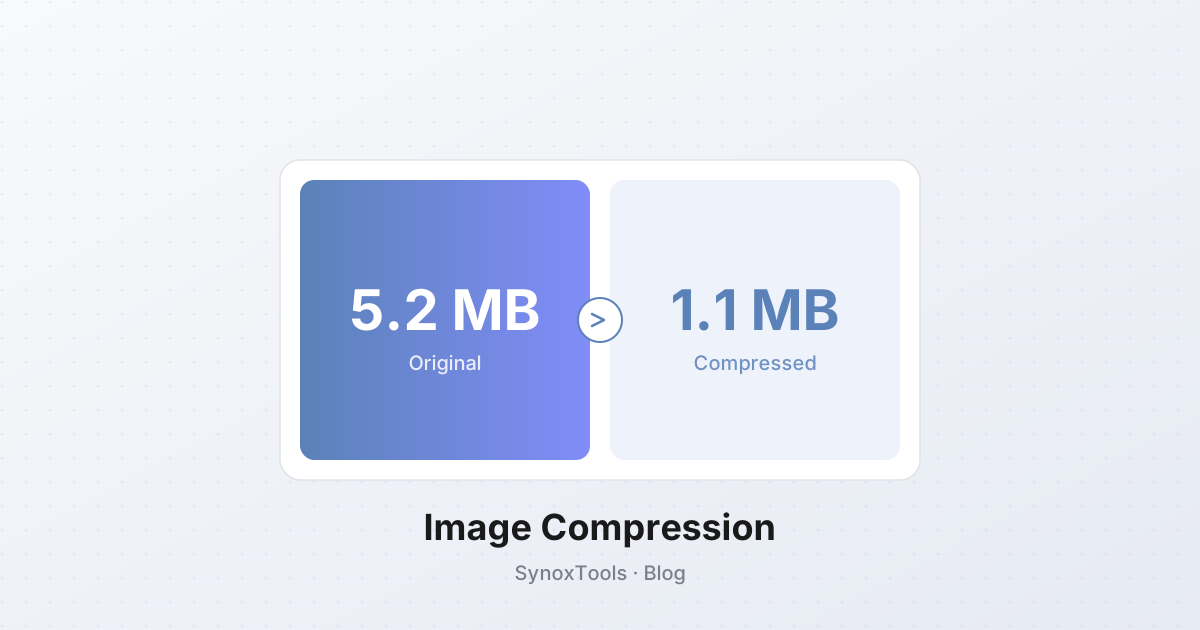
Server-based tools have a hidden latency: the round-trip. Your image has to travel from your device to the server (often across continents), be queued behind other users' images, processed, and travel back. For a 5 MB photo on a fast connection, that's 200-500 ms of upload, 100-300 ms of processing, 200-500 ms of download — roughly 500-1500 ms total.
A browser-based tool has no round-trip. The image is already on the device. Processing a 5 MB photo in WASM takes 50-200 ms. Total time: 50-200 ms — typically 3-5× faster than the server-based equivalent.
For batch processing of 100 images, the difference is dramatic. A server-based tool has to upload 500 MB, process it server-side (often with per-user rate limits), and download 500 MB back. A browser-based tool processes all 100 images locally in parallel using Web Workers, with zero network traffic.
The privacy argument isn't theoretical
You might think: "I don't care if a compression service sees my vacation photos." Fair enough for vacation photos. But consider these real cases:
- A lawyer compressing evidence photos for a case — the photos may show crime scenes or witnesses.
- A doctor converting medical images to a smaller format for email — patient privacy laws apply.
- A designer working on an unreleased product — NDAs forbid sharing with third parties, including server operators.
- A journalist cropping photos of a source — the source's identity is at stake.
- A parent removing EXIF from photos of their kids — the location data in the original photo could reveal their home.
For these users, a server-based tool isn't a convenience — it's a liability. The browser-based model eliminates the risk entirely because the data never leaves their device.
The PWA angle: works offline, installable
Browser-based tools can be installed as Progressive Web Apps. Once installed, they work offline — no internet connection needed. This matters for:
- Travel — compress photos on a plane, in a tunnel, on a train with bad signal.
- Privacy-sensitive environments — corporate networks that block uploads to external servers.
- Low-bandwidth environments — rural areas, developing countries, mobile data caps.
- Repeated use — install once, click the icon, the tool opens instantly without loading from a server.
A server-based tool can't do this. It needs the network for every operation. A browser-based PWA works the same online or offline.
Why most tools are still server-based
If browser-based is faster, more private, and works offline, why are there still server-based image tools? Three reasons:
- Legacy — many tools were built before WASM and Canvas API were fast enough. They'd need a rewrite to go browser-based.
- Data collection — some tools explicitly want your images. They use them for training AI models, for content analysis, for advertising profiles. Browser-based tools can't do this — they never see your data.
- Lock-in — if the tool processes server-side, it can charge for API access, batch processing, premium features. Browser-based tools have nothing to lock in — the processing happens on your device.
The trend is toward browser-based. Squoosh (Google), Photopea, and SynoxTools all run locally. As WASM gets faster and browsers add more capabilities, the server-based model becomes harder to justify.
The takeaway
When you upload a photo to an online tool, you're giving up control. The photo is on someone else's server, subject to their retention policies, their security, their business model. Browser-based tools eliminate this risk entirely — your image stays on your device, processed by your browser's own compute power. They're faster, they're private, and they work offline. The next time you need to compress, convert, or crop an image, check whether the tool is browser-based. Open DevTools. Watch the Network tab. If you see an upload, find a different tool.