The problem
You have 500 product photos. Each is 4 MB. You need them all at 800×800, in WebP, under 100 KB each, named consistently. The total work is small (resize + convert each, ~80 ms per image, ~40 seconds total) — but the practical workflow of "open each, process, save, repeat" makes it unbearable.
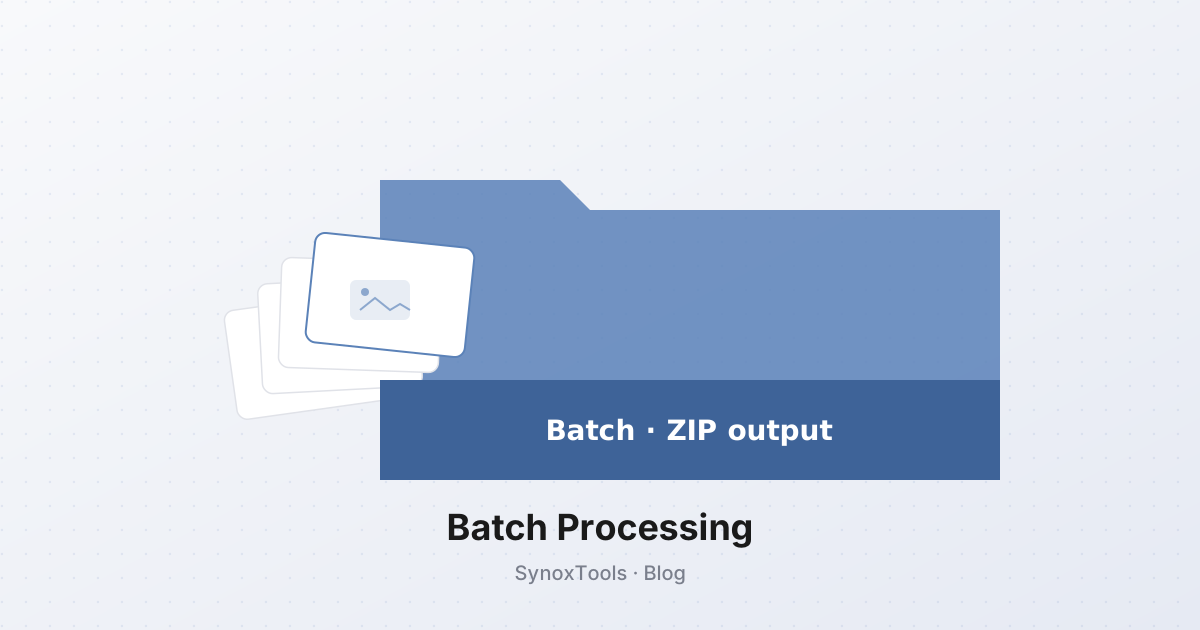
Batch processing exists to solve this. Drop in 500 files, get back 500 processed files in a ZIP, all in one operation.
The naive approach (and why it breaks)
The obvious implementation: loop through the files, run the compressor on each, push the result to an array, then ZIP and download at the end. This works for 10 files. It crashes the browser tab at 50.
Two reasons:
- Memory. A 4 MB JPEG, when decoded into raw pixel data for processing, becomes a 50 MB RGBA buffer (4000×3000×4 bytes). Holding 50 of those simultaneously is 2.5 GB — over the memory limit of most browser tabs. The tab gets killed.
- UI blocking. Image processing is CPU-bound. If you do it on the main thread, the UI freezes during every image and the page becomes unresponsive. Users think it crashed.
How SynoxTools handles it
Three tricks:
1. Web Workers
All image processing runs in a Web Worker — a separate thread that cannot touch the DOM but can crunch numbers without blocking the UI. The main thread stays responsive; the worker does the heavy lifting. The user can scroll, click cancel, switch tabs — everything stays smooth.
SynoxTools uses a single persistent worker that processes images sequentially. Multi-threaded workers (one per CPU core) are faster but introduce complex message-passing overhead; for typical batch sizes (10–500 images), a single worker with smart scheduling is the sweet spot.
2. Streaming output via JSZip
Instead of building a 500-file array in memory, SynoxTools streams each processed image directly into the ZIP as it completes. JSZip supports incremental updates — you can add a file, then add another, then generate the final blob at the end. Memory stays flat regardless of batch size.
3. Sequential processing with progress feedback
Each image takes ~80 ms. For 500 images, that's 40 seconds total. The user sees a progress bar, a counter ("127 / 500"), and the current file being processed. The bar updates after each image, not at the end. Psychologically, a 40-second wait with steady progress feels much shorter than a 5-second wait with no feedback.
Limits and trade-offs
- 500 files at once is the practical max. Above that, the ZIP generation step (which is single-threaded) takes longer than the actual image processing. For 1000+ images, the recommended workflow is to split into batches of 500 and run them sequentially.
- Memory still matters. The original file (the one being processed) gets decoded into a 50 MB buffer, then the result is encoded back into a 100 KB WebP, then the buffer is freed. Only one image's buffer is held at a time, but for very large source images (6000×4000), even one buffer can push memory limits.
- Browser tab crashes are possible if the user opens many other tabs or has low RAM. SynoxTools shows a warning for batches over 200 files, recommending the user close other tabs.
The complete workflow
- Drag in up to 500 images (or click to browse, or paste from clipboard).
- Configure: output format (WebP, JPEG, PNG), quality, resize dimensions.
- Click "Process". Watch the progress bar.
- Download the resulting ZIP.
For repeated workflows (e.g. weekly product catalog updates), the same configuration can be reused — the batch processor remembers your last settings via localStorage.
When to use batch vs. individual
- Batch for: same operation on many files (resize all to 800×800, compress all to 80% quality).
- Individual for: one image needing careful tuning (a hero image, a portfolio piece).
The batch tool is for volume. The individual tools are for craft. Use both.