Why compression matters
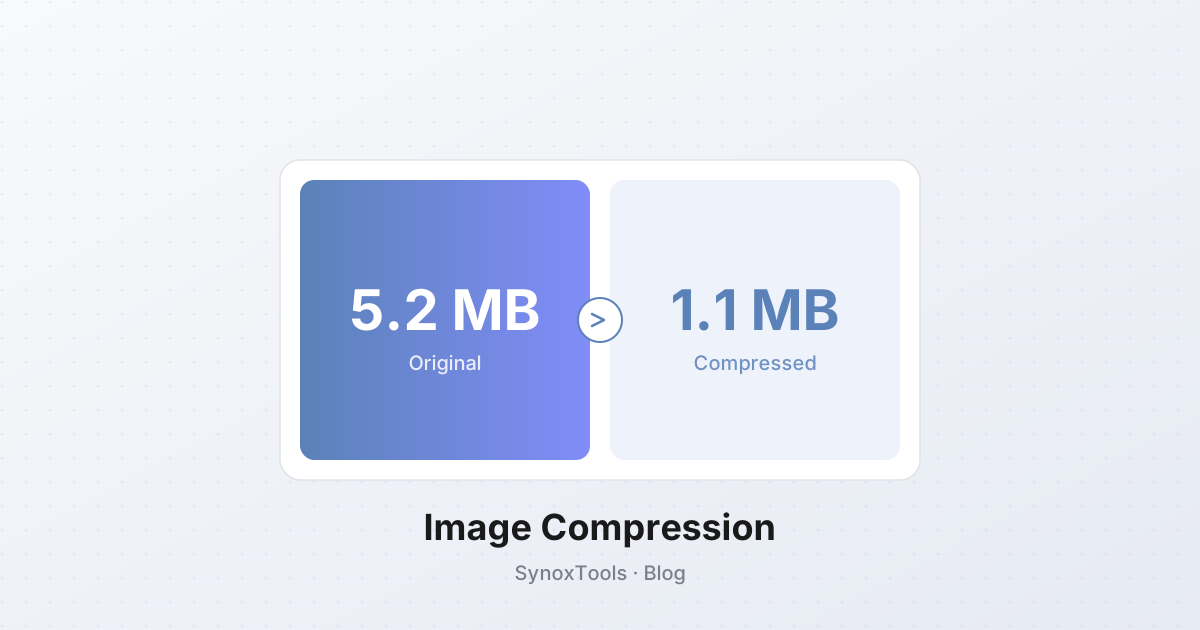
Every byte that leaves a server costs money and time. A typical phone photo is 3–5 MB; ten of them on a webpage means a 30–50 MB download — brutal on mobile data and slow even on fiber. Compression is what makes the modern web usable.
But "compression" is not one thing. There are two fundamentally different mechanisms, and confusing them is the source of most bad results.
Lossy vs lossless
Lossless compression (PNG, lossless WebP, FLAC for audio) finds redundant data and packs it more efficiently. The original pixels come back bit-for-bit. File sizes shrink maybe 20–40%, rarely more.
Lossy compression (JPEG, lossy WebP, AVIF, MP3) throws away information the eye is bad at seeing — high-frequency detail in flat areas, subtle color gradients. Files can shrink 80–95% with no visible difference. Push it further and you get artifacts: blocky bands, halos around edges, color bleeding.
The JPEG quality slider, demystified
Most tools expose a single "quality" number from 1 to 100. It controls how aggressively the encoder quantizes frequency coefficients. Here is what actually happens at different ranges:
- 90–100 — visually indistinguishable from the original. Files are large (often bigger than the source if the source was already compressed). Useful for archival, not the web.
- 75–85 — the sweet spot. Most images look identical to the source at normal viewing size, and files drop 60–80%.
- 60–75 — acceptable for thumbnails and small UI images. At full size you can see softening and mild banding in skies.
- 40–60 — visible artifacts. Blocky edges, color shifts. Use only when bandwidth is critical.
- Below 40 — only for placeholders or progressive loading previews.
The format question: JPEG, PNG, WebP, or AVIF?
It depends on the content:
| Content | Best format | Why | |---|---|---| | Photographs | WebP (lossy) or AVIF | 25–35% smaller than JPEG at the same quality | | UI screenshots, text, line art | PNG | Crisp edges, no artifacts, lossless | | Photos with transparency | WebP (with alpha) | JPEG has no alpha; PNG is much larger | | Animated sequences | WebP or AVIF (animated) | Smaller than GIF, supports more colors |
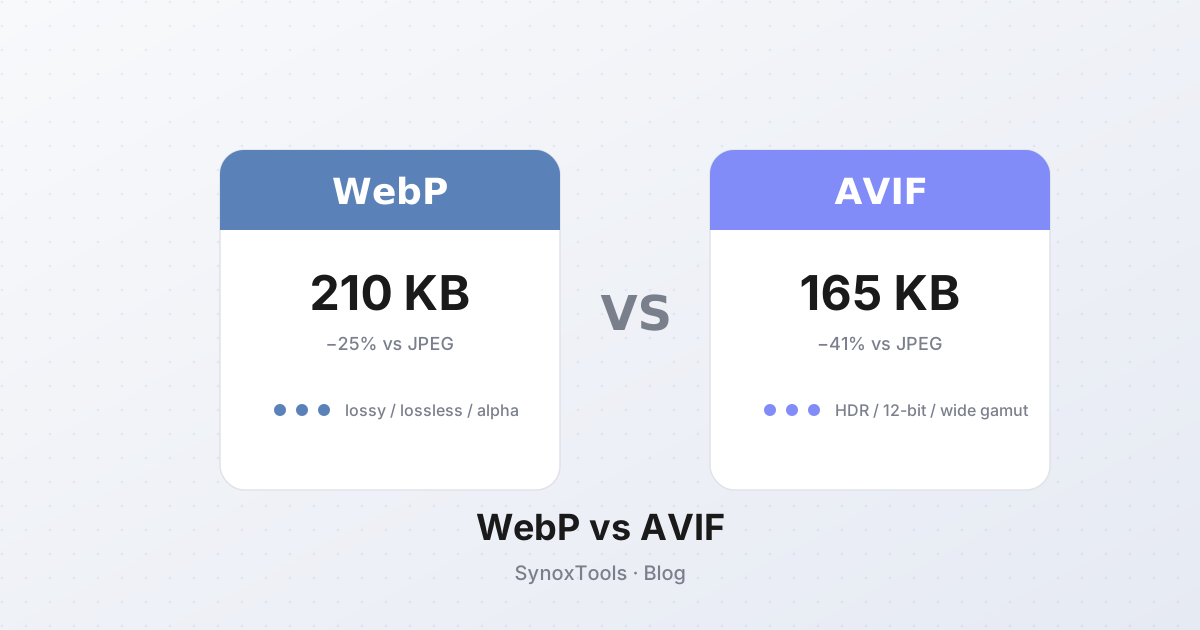
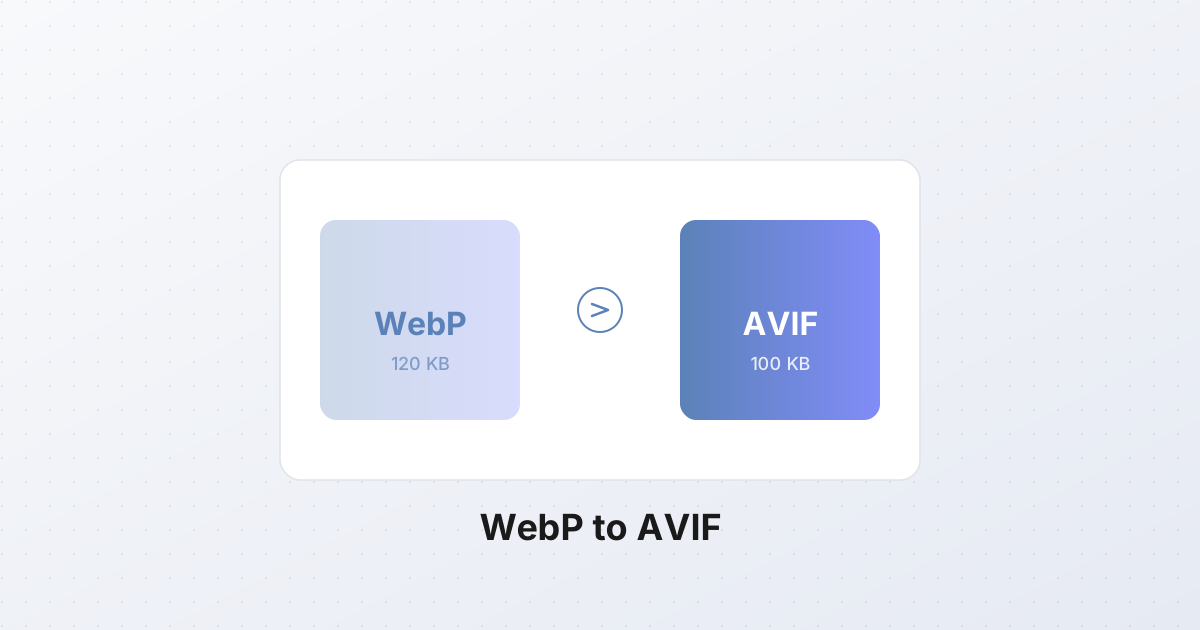
AVIF beats WebP by another 10–20% on file size, but encoding is slow and some older browsers don't render it. WebP is the safer default for the web in 2026.
The "export at the size you'll display" rule
The single most effective compression technique is not a slider — it is resizing. A 4000×3000 photo displayed at 800×600 on the page should be resized to 800×600 before compression. A 12-megapixel original squeezed into a 0.5-megapixel box is 24× more data than the viewer will ever see. No quality slider can compensate for shipping the wrong resolution.
This is why a good compression tool always offers resize alongside quality. Use both.
Practical workflow
- Resize to the maximum display dimensions ×2 (for retina screens).
- Convert to WebP (or AVIF if your stack supports it).
- Set quality to 80. Adjust to taste — for hero images, stay at 85+; for thumbnails, 70 is fine.
- Strip metadata (EXIF, GPS, camera info) — saves a few KB and protects privacy.
- Verify by opening the result at 100% zoom. If it looks identical, you're done.
What SynoxTools does for you
The compressor on this site runs all of this in your browser — no upload, no server processing. It picks sensible defaults (quality 80, format auto-selected based on content), lets you override every setting, and gives you a live before/after comparison so you can see exactly what you're trading away.
Try it: drag in a photo, watch the file size drop 80%, zoom in to confirm the quality is unchanged.