The cheat sheet
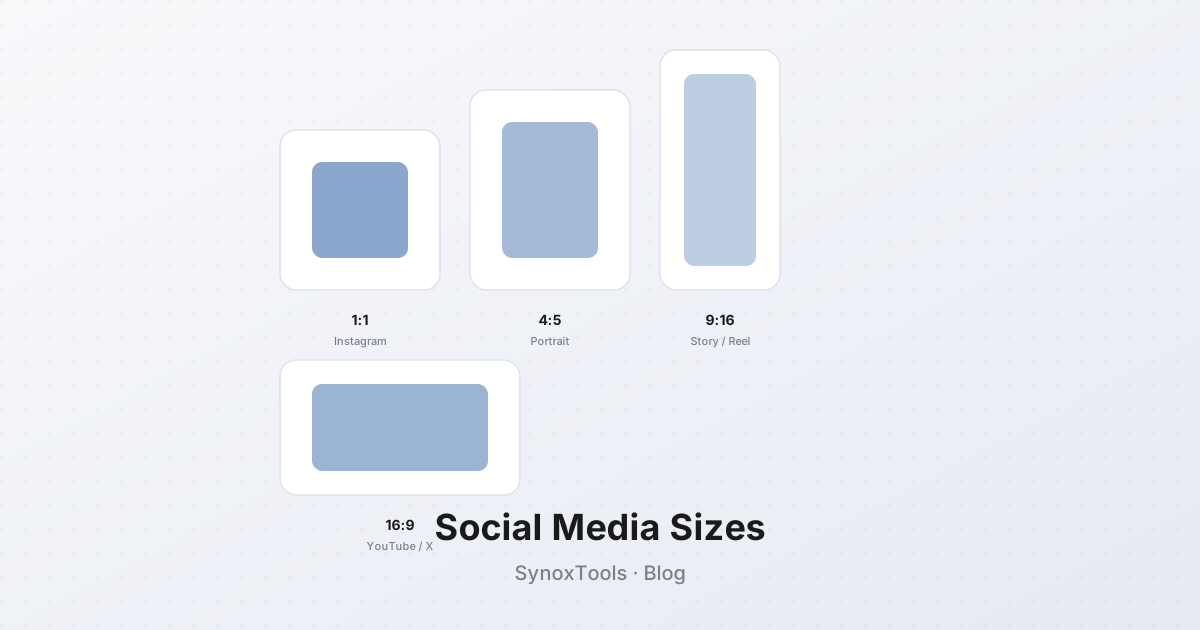
| Platform | Placement | Recommended size | Aspect ratio | |---|---|---|---| | Instagram | Square post | 1080×1080 | 1:1 | | Instagram | Portrait post | 1080×1350 | 4:5 | | Instagram | Landscape post | 1080×566 | 1.91:1 | | Instagram | Story / Reel | 1080×1920 | 9:16 | | Instagram | Profile photo | 320×320 | 1:1 | | Facebook | Link preview | 1200×630 | 1.91:1 | | Facebook | Cover photo | 820×312 | 2.63:1 | | Facebook | Story | 1080×1920 | 9:16 | | X (Twitter) | Post image | 1600×900 | 16:9 | | X (Twitter) | Header | 1500×500 | 3:1 | | YouTube | Thumbnail | 1280×720 | 16:9 | | YouTube | Channel banner | 2560×1440 | 16:9 (safe area varies) | | LinkedIn | Post image | 1200×627 | 1.91:1 | | LinkedIn | Cover banner | 1584×396 | 4:1 | | TikTok | Video cover | 1080×1920 | 9:16 | | Pinterest | Pin | 1000×1500 | 2:3 |
These are the dimensions platforms actually display images at. Larger sizes get downscaled (wasted bandwidth); smaller sizes get upscaled and look soft.
Why these specific numbers
Instagram crops everything outside a 4:5 aspect ratio in the feed. If you upload a 1080×1920 portrait (9:16), Instagram shows the center 1080×1350 and crops the top and bottom. Upload a 1080×1350 in the first place and you control what gets shown.
Facebook's link preview ratio of 1.91:1 looks odd until you realize it is exactly the Open Graph standard ratio — Facebook treats every link preview as an OG image and enforces the same dimensions across the platform.
X's 16:9 is the same ratio YouTube uses for thumbnails, which is why cross-posting between them works without re-cropping.
The safe margins nobody mentions
Platforms have a "safe zone" — the area guaranteed to be visible across every device and viewing context. Anything outside the safe zone may be cropped on mobile, in feeds, or in notifications.
- Instagram feed posts: keep important content within the center 80% of the frame. The outer 10% on each side may be cropped when the post is shown as a thumbnail in notifications or in the profile grid.
- Facebook cover photos: the bottom 100 pixels and top 50 pixels may be cropped on mobile. Keep text and faces in the center vertical band.
- YouTube thumbnails: the bottom-right corner is overlaid with the video duration timestamp. Keep text and faces away from it.
- X header images: the bottom 100 pixels are usually hidden behind the profile info bar on desktop. Treat the visible area as approximately 1500×400.
Exporting for retina
If you want images to look crisp on high-DPI screens (iPhone Pro, MacBook Retina, modern Android flagships), export at 2× the display dimensions. A 1080×1080 Instagram post becomes 2160×2160 — but Instagram's CDN downscales it anyway, so the practical gain is small.
A better approach: export at exactly the dimensions in the table above. Platforms have already optimized their CDNs for these sizes, and any extra pixels are wasted bandwidth.
The "export once, crop variants" workflow
If you need the same image for multiple platforms:
- Master file: highest-resolution, uncropped original.
- Square crop (1:1) for Instagram feed, X posts, LinkedIn.
- Portrait crop (4:5) for Instagram portrait posts.
- Landscape crop (16:9 or 1.91:1) for Facebook link previews, YouTube thumbnails.
- Story crop (9:16) for Instagram Stories, Facebook Stories, TikTok covers.
Five exports cover every major platform. The Resizer on this site has presets for all of them — pick the platform, get the right dimensions, no math required.
What about file size?
Most platforms re-compress images on upload regardless of what you send them. Instagram in particular is notorious for aggressive recompression — even a 200 KB upload can come out at 80 KB after Instagram's CDN processes it.
The practical rule: aim for under 1 MB per image. Anything larger gets recompressed by the platform's CDN anyway, and you cannot control the quality of that recompression. A 200–500 KB WebP at the right dimensions looks better on Instagram than a 5 MB original.
Common mistakes
- Uploading the wrong aspect ratio — gets cropped automatically, often in unflattering ways.
- Uploading huge files — platforms recompress aggressively, you lose control of quality.
- Forgetting safe margins — text or faces get cut off on mobile.
- Using JPEG for graphics with text — compression artifacts make text look blurry. Use PNG for text-heavy images, or convert to WebP at quality 90+.
The Resizer tool on this site handles all of this — pick the platform, drag in your image, get back the right size in the right format.