The checkerboard you have seen everywhere
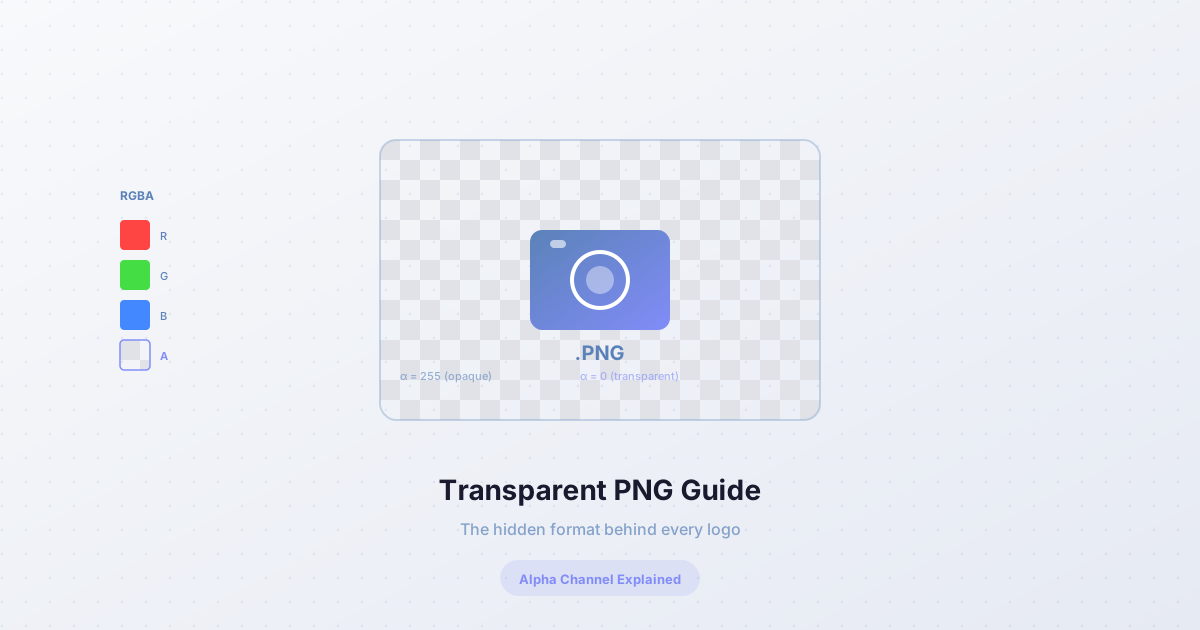
If you have ever used an image editor, you have seen the checkerboard pattern. It is the universal symbol for "transparent" — the areas of an image where there are no pixels, just nothing. The checkerboard is not part of the image; it is the editor's way of showing you that the background is see-through.
But what is actually happening at the pixel level? And why can JPEG not do this, while PNG can?
How transparency works
Every digital image is a grid of pixels. Each pixel has three color channels: red, green, and blue (RGB). The values range from 0 to 255, and together they define the color — (255, 0, 0) is pure red, (0, 255, 0) is pure green, (0, 0, 0) is black, (255, 255, 255) is white.
Transparent images add a fourth channel: alpha. Alpha controls the opacity of the pixel. A value of 255 means fully opaque (you see the pixel's color). A value of 0 means fully transparent (you see nothing — whatever is behind the pixel shows through). Values in between (1-254) mean semi-transparent — the pixel's color blends with whatever is behind it.
This is called RGBA (Red, Green, Blue, Alpha). It is the foundation of every transparent image on the web.
Why JPEG cannot be transparent
JPEG was designed in 1992 for photographs. It uses lossy compression — it throws away visual information that the human eye is less sensitive to, achieving small file sizes at the cost of some quality. JPEG supports only 3 channels (RGB). There is no alpha channel.
This is not an oversight — it is a design choice. Photographs do not need transparency. A photo of a sunset fills the entire frame; there is no "background" to see through. Adding an alpha channel would increase the file size by 33% (4 channels instead of 3) for no benefit.
When you save a JPEG, any transparency is replaced with a solid color — usually white, sometimes black. This is why JPEGs always have a rectangular shape and cannot be placed on a colored background without showing a white box.
Why PNG can
PNG (Portable Network Graphics) was designed in 1996 as a replacement for GIF. It supports RGBA — 4 channels per pixel, including alpha. PNG uses lossless compression, so the transparency is preserved exactly, with no artifacts.
PNG's alpha channel supports 256 levels of transparency (0-255), which is enough for smooth edges — a strand of hair fading from opaque to transparent over 2-3 pixels looks natural, not blocky. This is why every logo, sticker, and cutout on the web is a PNG.
The tradeoff: file size
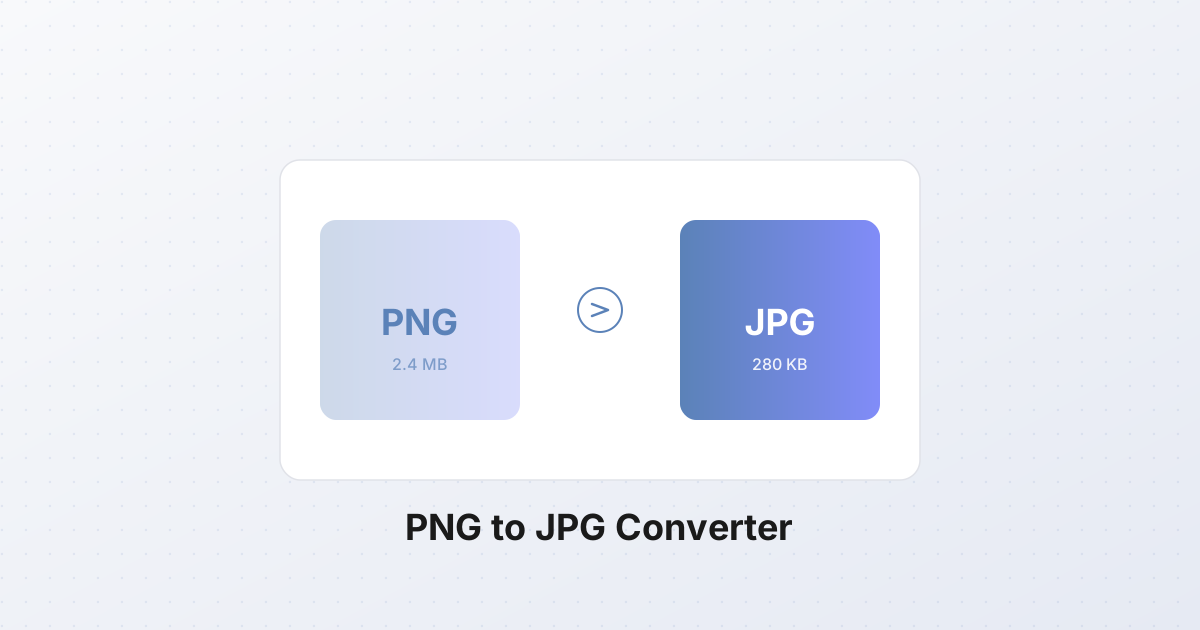
PNG's advantage (lossless, transparent) is also its disadvantage (large files). A 1000×1000 PNG with transparency is typically 2-5 MB, while the same image as a JPEG is 200-500 KB — 10× smaller.
This is because lossless compression cannot discard information. Every pixel's alpha value must be stored exactly. For photos with smooth gradients (skies, skin tones), PNG is inefficient because the lossless compression cannot find patterns to exploit.
WebP: the best of both
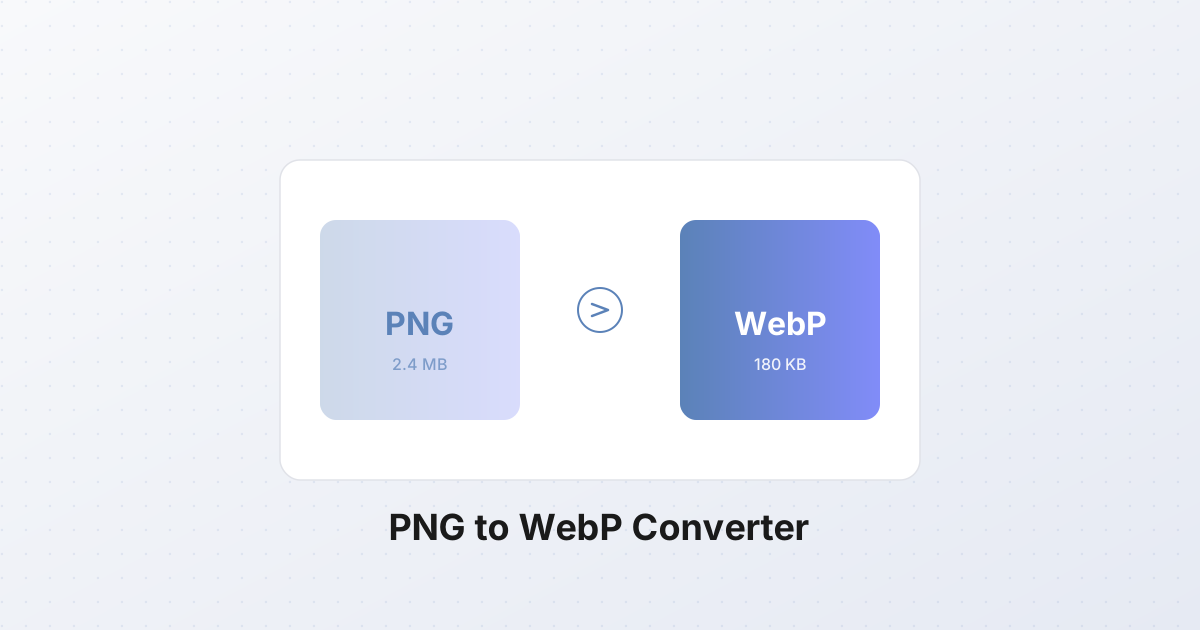
WebP, introduced by Google in 2010, supports both lossy and lossless compression, and includes an alpha channel. A WebP file with transparency is typically 30-50% smaller than the equivalent PNG, with no visible quality loss.
WebP is now supported by all major browsers (Chrome, Firefox, Safari, Edge). For new projects, WebP is the recommended format for transparent images — it combines PNG's transparency with JPEG's small file size.
The exception: if you need maximum compatibility (old browsers, email clients, embedded systems), PNG is still the safest choice. WebP support is universal in 2026, but some edge cases remain.
When to use transparent images
Logos and branding. Every logo should be a transparent PNG (or WebP). A logo on a white box looks unprofessional on a colored website header. A transparent logo adapts to any background.
Product cutouts. E-commerce listings (Amazon, Shopify, eBay) require product photos on a white background. But for marketing materials — banners, social media posts, ads — a transparent cutout lets you composite the product onto any scene.
Stickers and emojis. Chat stickers, Discord emojis, and Telegram stickers are all transparent PNGs. The transparency lets them overlay on any chat background — light, dark, patterned.
UI elements. Icons, buttons, and interface graphics use transparency to blend with the app's theme. A transparent icon on a dark theme looks correct; the same icon with a white box looks broken.
Collage and compositing. When combining multiple images — a person in front of a new background, a product on a different surface — transparent PNGs let you layer elements naturally.
When not to use transparent images
Photographs. Photos fill the frame and do not need transparency. Use JPEG (smaller) or WebP (even smaller).
Full-bleed images. Banners, hero images, and cover photos that fill their container do not need transparency — they are always placed on a solid background.
Print. Most print workflows expect a solid background (usually white). Transparency in print requires special handling and is often not supported by print drivers.
How to create transparent images
The most common way: remove the background from a photo. This can be done with:
- AI background removers — fast, automatic, good for most photos.
- Color-based tools — select a color range (e.g., "remove all green") and delete it.
- Manual masking — trace the subject by hand for maximum precision.
- Green screen — shoot against a solid color background for easy removal.
The result is a PNG with an alpha channel: opaque where the subject is, transparent everywhere else. The checkerboard pattern in your image editor shows the transparent areas.
The alpha edge problem
When a background is removed, the edge pixels — where the subject meets the background — are a problem. If the edge is hard (alpha jumps from 255 to 0), the cutout looks jagged. If the edge is soft (alpha gradually transitions), the cutout looks natural but may have a "halo" — a faint tint of the original background color.
Professional background removers solve this with color decontamination — an algorithm that removes the background tint from semi-transparent edge pixels. Without this step, a subject cut from a green background will have a green fringe, especially visible in hair and fur.
The future
PNG is 30 years old and still the standard for transparency. WebP is the modern replacement, offering smaller files with the same transparency support. AVIF (the newest format) also supports alpha and achieves even smaller files, but browser support is still incomplete.
For now, the practical choice is:
- PNG for maximum compatibility (logos, icons, UI elements).
- WebP for web-optimized transparent images (photos with transparency, large cutouts).
- AVIF for cutting-edge web projects where every byte matters.
Transparency is one of those features that seems simple — you see the checkerboard, you know it is transparent — but the underlying math (alpha compositing, premultiplied alpha, color decontamination) is surprisingly complex. The next time you place a logo on a colored background and it looks seamless, you are benefiting from 30 years of image format evolution.